在本教程中,你将构建一个小型井字棋游戏。本教程不假设你已有任何 React 知识。你将在教程中学到的这些技术是构建任何 React 应用的基础,完全理解它们将让你对 React 有深入的认识。
本教程分为几个部分:
- 教程设置将为你提供一个起点,以便跟随教程进行。
- 概览将教你 React 的基础知识:组件、props 和 state。
- 完成游戏将教你 React 开发中最常见的技术。
- 添加时间旅行将让你对 React 独特的优势有更深入的理解。
你在构建什么?
在本教程中,你将使用 React 构建一个交互式井字棋游戏。
你可以在这里看到完成后的样子:
import { useState } from 'react';

function Square({ value, onSquareClick }) {
  return (
    <button className="square" onClick={onSquareClick}>
      {value}
    </button>
  );
}

function Board({ xIsNext, squares, onPlay }) {
  function handleClick(i) {
    if (calculateWinner(squares) || squares[i]) {
      return;
    }
    const nextSquares = squares.slice();
    if (xIsNext) {
      nextSquares[i] = 'X';
    } else {
      nextSquares[i] = 'O';
    }
    onPlay(nextSquares);
  }

  const winner = calculateWinner(squares);
  let status;
  if (winner) {
    status = '获胜者:' + winner;
  } else {
    status = '下一位玩家:' + (xIsNext ? 'X' : 'O');
  }

  return (
    <>
      <div className="status">{status}</div>
      <div className="board-row">
        <Square value={squares[0]} onSquareClick={() => handleClick(0)} />
        <Square value={squares[1]} onSquareClick={() => handleClick(1)} />
        <Square value={squares[2]} onSquareClick={() => handleClick(2)} />
      </div>
      <div className="board-row">
        <Square value={squares[3]} onSquareClick={() => handleClick(3)} />
        <Square value={squares[4]} onSquareClick={() => handleClick(4)} />
        <Square value={squares[5]} onSquareClick={() => handleClick(5)} />
      </div>
      <div className="board-row">
        <Square value={squares[6]} onSquareClick={() => handleClick(6)} />
        <Square value={squares[7]} onSquareClick={() => handleClick(7)} />
        <Square value={squares[8]} onSquareClick={() => handleClick(8)} />
      </div>
    </>
  );
}

export default function Game() {
  const [history, setHistory] = useState([Array(9).fill(null)]);
  const [currentMove, setCurrentMove] = useState(0);
  const xIsNext = currentMove % 2 === 0;
  const currentSquares = history[currentMove];

  function handlePlay(nextSquares) {
    const nextHistory = [...history.slice(0, currentMove + 1), nextSquares];
    setHistory(nextHistory);
    setCurrentMove(nextHistory.length - 1);
  }

  function jumpTo(nextMove) {
    setCurrentMove(nextMove);
  }

  const moves = history.map((squares, move) => {
    let description;
    if (move > 0) {
      description = '前往第 #' + move + ' 步';
    } else {
      description = '回到游戏开始';
    }
    return (
      <li key={move}>
        <button onClick={() => jumpTo(move)}>{description}</button>
      </li>
    );
  });

  return (
    <div className="game">
      <div className="game-board">
        <Board xIsNext={xIsNext} squares={currentSquares} onPlay={handlePlay} />
      </div>
      <div className="game-info">
        <ol>{moves}</ol>
      </div>
    </div>
  );
}

function calculateWinner(squares) {
  const lines = [
    [0, 1, 2],
    [3, 4, 5],
    [6, 7, 8],
    [0, 3, 6],
    [1, 4, 7],
    [2, 5, 8],
    [0, 4, 8],
    [2, 4, 6],
  ];
  for (let i = 0; i < lines.length; i++) {
    const [a, b, c] = lines[i];
    if (squares[a] && squares[a] === squares[b] && squares[a] === squares[c]) {
      return squares[a];
    }
  }
  return null;
}
如果你现在还不理解这些代码,或者不熟悉这些代码的语法,也不用担心!本教程的目标是帮助你理解 React 及其语法。
我们建议你在继续教程之前先看看上面的井字棋游戏。你会注意到的一个功能是,棋盘右侧有一个编号列表。这个列表会显示游戏中发生过的所有移动历史,并且会随着游戏进程更新。
在你玩过这个完成版的井字棋游戏之后,继续往下滚动。在本教程中,你将从一个更简单的模板开始。我们的下一步是先为你做好准备,这样你就可以开始构建这个游戏了。
教程设置
在下面的在线代码编辑器中,点击右上角的 Fork,使用 CodeSandbox 网站在新标签页中打开编辑器。CodeSandbox 允许你在浏览器中编写代码,并预览用户将如何看到你创建的应用。新标签页中应该会显示一个空白方块以及本教程的起始代码。
export default function Square() {
  return <button className="square">X</button>;
}
概览
现在你已经准备好了,让我们来了解一下 React 的概览!
检查起始代码
在 CodeSandbox 中,你会看到三个主要区域:
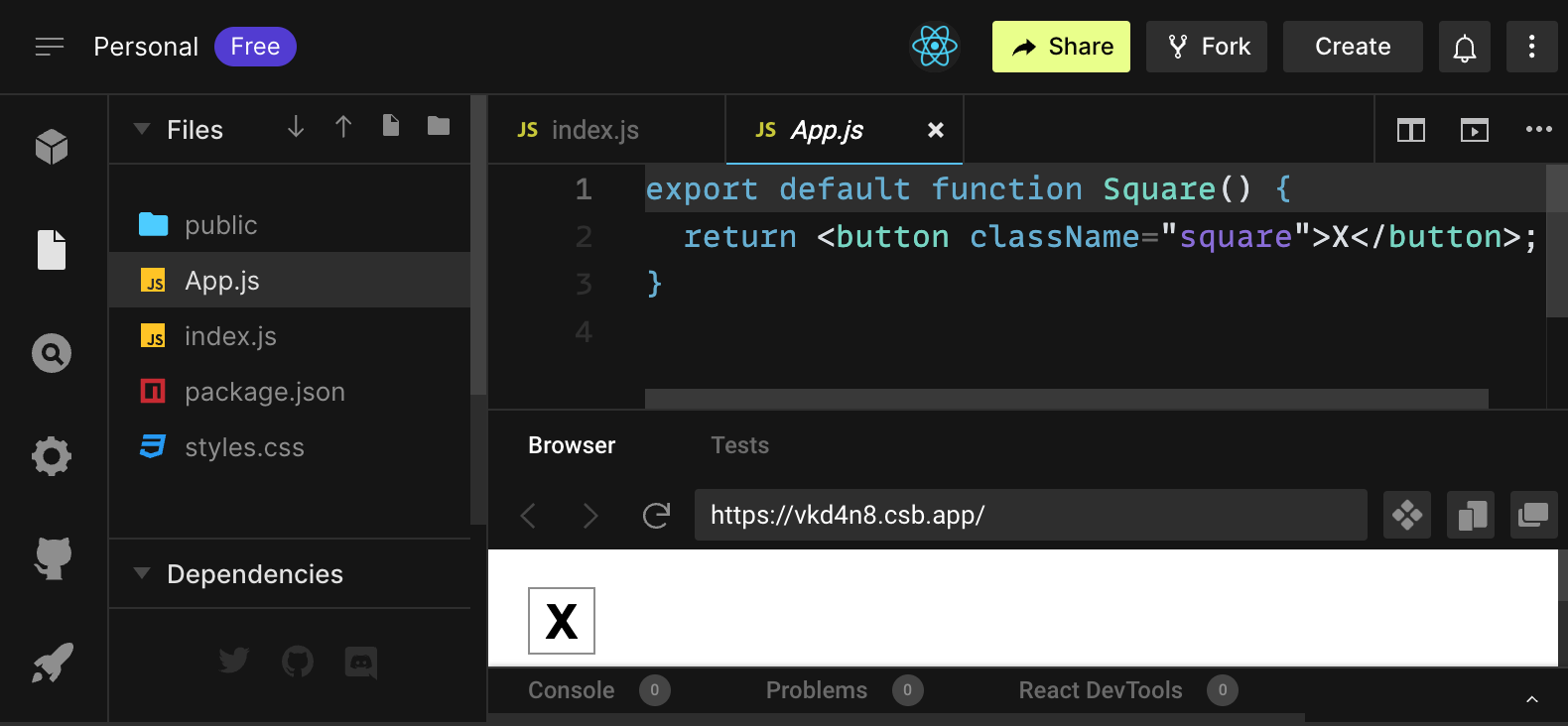
- Files 区域,里面有一个文件列表,例如
src文件夹中的App.js、index.js、styles.css,以及一个名为public的文件夹 - 代码编辑器,你会在这里看到所选文件的源代码
- 浏览器 区域,你会在这里看到你编写的代码将如何显示
App.js 文件应该已经在 Files 区域中被选中。代码编辑器 中该文件的内容应该是:
export default function Square() {
  return <button className="square">X</button>;
}
浏览器 区域应该显示一个方块,里面有一个 X,如下所示:

现在让我们看看起始代码中的文件。
App.js
App.js 中的代码创建了一个 组件。在 React 中,组件是一段可复用的代码,用来表示用户界面的一部分。组件用于渲染、管理和更新应用中的 UI 元素。让我们逐行看看这个组件,了解它在做什么:
export default function Square() {
  return <button className="square">X</button>;
}
第一行定义了一个名为 Square 的函数。export 这个 JavaScript 关键字使这个函数可以在本文件之外被访问。default 关键字告诉其他使用你代码的文件,这是你文件中的主函数。
export default function Square() {
  return <button className="square">X</button>;
}第二行返回一个按钮。return 这个 JavaScript 关键字表示,后面的内容会作为函数调用者接收到的值返回。<button> 是一个 JSX 元素。JSX 元素是 JavaScript 代码和 HTML 标签的组合,用于描述你想显示的内容。className="square" 是按钮的属性,或称 prop,它告诉 CSS 如何设置按钮样式。X 是显示在按钮内部的文本,而 </button> 则关闭了 JSX 元素,表示后续内容不应放在按钮内部。
styles.css
点击 CodeSandbox 的 Files 区域中名为 styles.css 的文件。这个文件定义了你的 React 应用的样式。前两个 CSS 选择器(* 和 body)定义了应用大部分区域的样式,而 .square 选择器定义了任何将 className 属性设为 square 的组件的样式。在你的代码中,这对应于 App.js 文件中 Square 组件里的按钮。
index.js
点击 CodeSandbox 的 Files 区域中名为 index.js 的文件。在本教程中你不会编辑这个文件,但它是你在 App.js 文件中创建的组件与网页浏览器之间的桥梁。
import { StrictMode } from 'react';
import { createRoot } from 'react-dom/client';
import './styles.css';

import App from './App';
第 1-5 行把所有必要部分组合到一起:
- React
- 用于让 React 与网页浏览器通信的库(React DOM)
- 你的组件样式
- 你在
App.js中创建的组件。
文件剩余部分会将所有内容整合起来,并把最终产品注入到 public 文件夹中的 index.html。
构建棋盘
让我们回到 App.js。接下来整个教程的大部分时间你都会在这里度过。
目前棋盘只有一个方块,但你需要九个!如果你只是试着复制粘贴这个方块来做出两个方块,例如这样:
export default function Square() {
  return <button className="square">X</button><button className="square">X</button>;
}
你会得到这个错误:
<>...</>?React 组件需要返回单个 JSX 元素,而不是像两个按钮这样多个相邻的 JSX 元素。为了解决这个问题,你可以使用 Fragments(<> 和 </>)将多个相邻的 JSX 元素包裹起来,例如这样:
export default function Square() {
  return (
    <>
      <button className="square">X</button>
      <button className="square">X</button>
    </>
  );
}
现在你应该会看到:
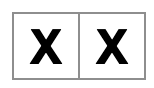
很好!现在你只需要再复制粘贴几次,添加九个方块,然后……

哎呀!这些方块都在一条直线上,而不是你需要的棋盘网格。要解决这个问题,你需要使用 div 将方块分组为多行,并添加一些 CSS 类。在这个过程中,你还会给每个方块一个编号,以确保你知道每个方块显示在哪里。
在 App.js 文件中,把 Square 组件更新成这样:
export default function Square() {
  return (
    <>
      <div className="board-row">
        <button className="square">1</button>
        <button className="square">2</button>
        <button className="square">3</button>
      </div>
      <div className="board-row">
        <button className="square">4</button>
        <button className="square">5</button>
        <button className="square">6</button>
      </div>
      <div className="board-row">
        <button className="square">7</button>
        <button className="square">8</button>
        <button className="square">9</button>
      </div>
    </>
  );
}
styles.css 中定义的 CSS 会对带有 board-row 这个 className 的 div 进行样式设置。现在你已经使用带样式的 div 将组件分组为多行,你就拥有了井字棋棋盘:
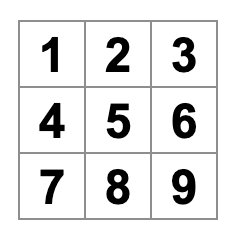
但现在你遇到了一个问题。你命名为 Square 的组件,其实已经不再是一个方块了。让我们把它改名为 Board:
export default function Board() {
  //...
}
此时你的代码应该类似这样:
export default function Board() {
  return (
    <>
      <div className="board-row">
        <button className="square">1</button>
        <button className="square">2</button>
        <button className="square">3</button>
      </div>
      <div className="board-row">
        <button className="square">4</button>
        <button className="square">5</button>
        <button className="square">6</button>
      </div>
      <div className="board-row">
        <button className="square">7</button>
        <button className="square">8</button>
        <button className="square">9</button>
      </div>
    </>
  );
}
通过 props 传递数据
接下来,当用户点击方块时,你要把一个方块的值从空白改成 “X”。按照你目前构建棋盘的方式,你需要把更新方块的代码复制粘贴九次(每个方块一次)!与其复制粘贴,React 的组件架构允许你创建可复用组件,从而避免杂乱且重复的代码。
首先,你要把定义第一个方块的那一行(<button className="square">1</button>)从 Board 组件中复制到一个新的 Square 组件里:
function Square() {
  return <button className="square">1</button>;
}

export default function Board() {
  // ...
}
然后你将更新 Board 组件,使用 JSX 语法来渲染这个 Square 组件:
// ...
export default function Board() {
  return (
    <>
      <div className="board-row">
        <Square />
        <Square />
        <Square />
      </div>
      <div className="board-row">
        <Square />
        <Square />
        <Square />
      </div>
      <div className="board-row">
        <Square />
        <Square />
        <Square />
      </div>
    </>
  );
}
请注意,与浏览器中的 div 不同,你自己的组件 Board 和 Square 必须以大写字母开头。
让我们看看效果:
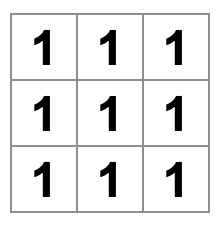
哎呀!你丢失了之前的编号方块。现在每个方块都显示 “1”。要修复这个问题,你将使用 props,把每个方块应该具有的值从父组件(Board)传递给子组件(Square)。
更新 Square 组件,让它读取从 Board 传入的 value prop:
function Square({ value }) {
  return <button className="square">1</button>;
}
function Square({ value }) 表示 Square 组件可以接收一个名为 value 的 prop。
现在你要在每个方块中显示这个 value,而不是 1。试着这样做:
function Square({ value }) {
  return <button className="square">value</button>;
}
糟糕,这不是你想要的效果:
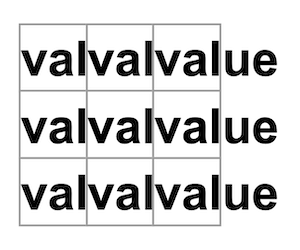
你想渲染的是组件中的 JavaScript 变量 value,而不是单词 “value”。要从 JSX “进入 JavaScript”,你需要使用花括号。在 JSX 中像这样把 value 放在花括号里:
function Square({ value }) {
  return <button className="square">{value}</button>;
}
现在,你应该会看到一个空棋盘:
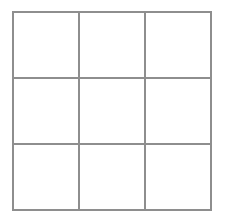
这是因为 Board 组件还没有把 value prop 传给它渲染的每个 Square 组件。为了解决这个问题,你需要给 Board 组件渲染的每个 Square 组件添加 value prop:
export default function Board() {
  return (
    <>
      <div className="board-row">
        <Square value="1" />
        <Square value="2" />
        <Square value="3" />
      </div>
      <div className="board-row">
        <Square value="4" />
        <Square value="5" />
        <Square value="6" />
      </div>
      <div className="board-row">
        <Square value="7" />
        <Square value="8" />
        <Square value="9" />
      </div>
    </>
  );
}
现在你应该又能看到一个数字网格了:
你更新后的代码应该如下所示:
function Square({ value }) {
  return <button className="square">{value}</button>;
}

export default function Board() {
  return (
    <>
      <div className="board-row">
        <Square value="1" />
        <Square value="2" />
        <Square value="3" />
      </div>
      <div className="board-row">
        <Square value="4" />
        <Square value="5" />
        <Square value="6" />
      </div>
      <div className="board-row">
        <Square value="7" />
        <Square value="8" />
        <Square value="9" />
      </div>
    </>
  );
}
让组件具有交互性
让我们在点击 Square 组件时把它填充为一个 X。在 Square 内部声明一个名为 handleClick 的函数。然后,把 onClick 添加到 Square 返回的按钮 JSX 元素的 props 中:
function Square({ value }) {
  function handleClick() {
    console.log('clicked!');
  }

  return (
    <button
      classNameName="square"
      onClick={handleClick}
    >
      {value}
    </button>
  );
}
如果你现在点击一个方块,你应该会在 CodeSandbox 的 Browser 区域底部的 Console 标签页中看到一条日志,显示 "clicked!"。多次点击方块会再次记录 "clicked!"。相同消息的重复控制台日志不会在控制台中创建更多行,而是会在第一条 "clicked!" 日志旁边显示一个递增计数器。
下一步,你希望 Square 组件“记住”它被点击过,并将其填充为一个 “X” 标记。为了“记住”一些东西,组件会使用 state。
React 提供了一个名为 useState 的特殊函数,你可以在组件中调用它来让组件“记住”一些东西。让我们把 Square 的当前值存储到 state 中,并在点击 Square 时改变它。
在文件顶部导入 useState。从 Square 组件中移除 value prop。取而代之的是,在 Square 开头新增一行来调用 useState。让它返回一个名为 value 的 state 变量:
import { useState } from 'react';

function Square() {
  const [value, setValue] = useState(null);

  function handleClick() {
    //...
value 存储值,而 setValue 是一个可用于修改该值的函数。传给 useState 的 null 用作这个 state 变量的初始值,因此这里的 value 一开始等于 null。
由于 Square 组件不再接收 props,你需要从 Board 组件创建的全部九个 Square 组件中移除 value prop:
// ...
export default function Board() {
  return (
    <>
      <div className="board-row">
        <Square />
        <Square />
        <Square />
      </div>
      <div className="board-row">
        <Square />
        <Square />
        <Square />
      </div>
      <div className="board-row">
        <Square />
        <Square />
        <Square />
      </div>
    </>
  );
}
现在你要让 Square 在被点击时显示一个 “X”。把 console.log("clicked!"); 事件处理函数替换为 setValue('X');。现在你的 Square 组件看起来像这样:
function Square() {
  const [value, setValue] = useState(null);

  function handleClick() {
    setValue('X');
  }

  return (
    <button
      className="square"
      onClick={handleClick}
    >
      {value}
    </button>
  );
}
通过在 onClick 处理函数中调用这个 set 函数,你是在告诉 React:每当这个 <button> 被点击时,就重新渲染那个 Square。更新之后,Square 的 value 将会是 'X',所以你会在游戏棋盘上看到 “X”。点击任意一个方块,“X” 应该就会出现:
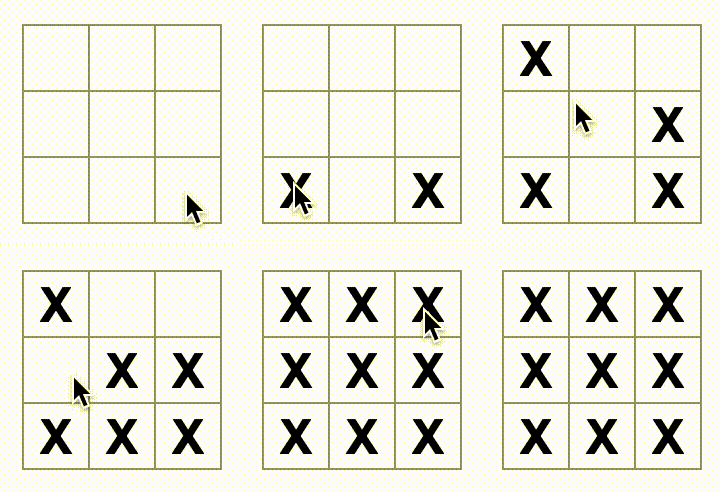
每个 Square 都有自己的 state:每个 Square 中存储的 value 与其他 Square 完全独立。当你在组件中调用 set 函数时,React 会自动更新其中的子组件。
完成上述更改后,你的代码会如下所示:
import { useState } from 'react';

function Square() {
  const [value, setValue] = useState(null);

  function handleClick() {
    setValue('X');
  }

  return (
    <button
      className="square"
      onClick={handleClick}
    >
      {value}
    </button>
  );
}

export default function Board() {
  return (
    <>
      <div className="board-row">
        <Square />
        <Square />
        <Square />
      </div>
      <div className="board-row">
        <Square />
        <Square />
        <Square />
      </div>
      <div className="board-row">
        <Square />
        <Square />
        <Square />
      </div>
    </>
  );
}
React 开发者工具
React 开发者工具可让你查看 React 组件的 props 和 state。它作为 Chrome、Firefox 和 Edge 浏览器扩展提供。
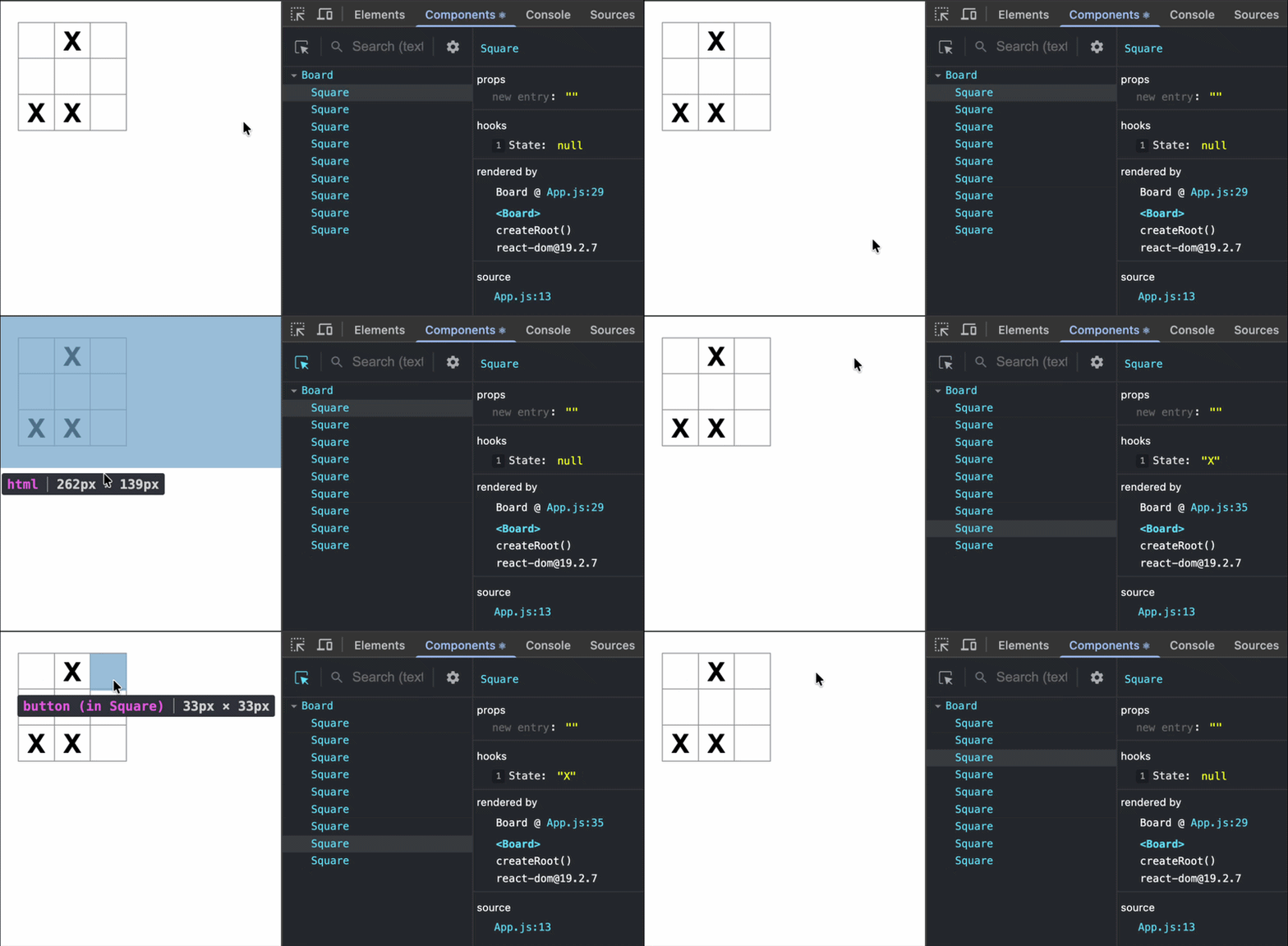
安装后,使用 React 的网站在浏览器开发者工具中会出现一个新的 Components 选项卡。如果你正在 CodeSandbox 中跟着操作,你需要先在新标签页中打开你的沙盒预览:

然后,在预览页面上,打开浏览器的 DevTools 并找到 Components 选项卡:
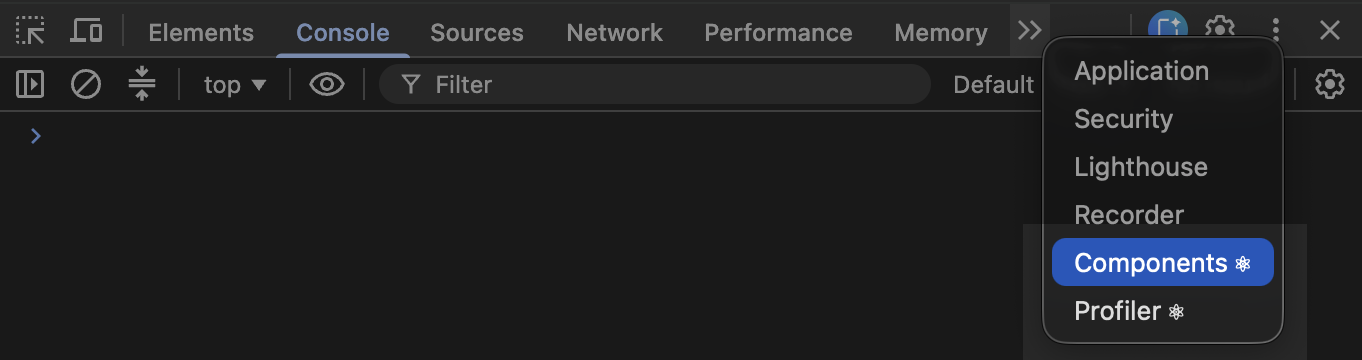
要检查屏幕上的特定组件,请使用 Components 选项卡左上角的按钮:
完成游戏
到目前为止,你已经拥有了井字棋游戏所需的所有基本构件。要让游戏完整运行,你现在需要轮流在棋盘上放置 “X” 和 “O”,并且需要一种判断胜者的方法。
提升状态
目前,每个 Square 组件都维护着游戏状态的一部分。要在井字棋游戏中检查胜者,Board 需要以某种方式知道 9 个 Square 组件中每一个的状态。
你会如何处理这个问题呢?一开始,你可能会猜测 Board 需要向每个 Square “询问”该 Square 的状态。虽然这种方法在 React 中技术上是可行的,但我们不建议这样做,因为代码会变得难以理解、容易出错,并且难以重构。相反,最佳做法是将游戏状态存储在父级 Board 组件中,而不是分别存储在每个 Square 中。Board 组件可以像你之前向每个 Square 传递数字那样,通过传递 prop 来告诉每个 Square 显示什么内容。
要从多个子组件收集数据,或者让两个子组件相互通信,请改为在它们的父组件中声明共享状态。父组件可以通过 props 将该状态再传递给子组件。这样可以让子组件彼此之间以及与父组件保持同步。
当 React 组件被重构时,将状态提升到父组件中是很常见的做法。
让我们借此机会试一试。编辑 Board 组件,使其声明一个名为 squares 的状态变量,默认值为一个包含 9 个 null 的数组,对应 9 个格子:
// ...
export default function Board() {
  const [squares, setSquares] = useState(Array(9).fill(null));
  return (
    // ...
  );
}
Array(9).fill(null) 会创建一个包含 9 个元素的数组,并将每个元素都设为 null。外层的 useState() 调用会声明一个 squares 状态变量,初始值就是这个数组。数组中的每一项对应一个格子的值。等你之后填充棋盘时,squares 数组会像这样:
['O', null, 'X', 'X', 'X', 'O', 'O', null, null]现在你的 Board 组件需要将 value prop 传递给它渲染的每个 Square:
export default function Board() {
  const [squares, setSquares] = useState(Array(9).fill(null));
  return (
    <>
      <div className="board-row">
        <Square value={squares[0]} />
        <Square value={squares[1]} />
        <Square value={squares[2]} />
      </div>
      <div className="board-row">
        <Square value={squares[3]} />
        <Square value={squares[4]} />
        <Square value={squares[5]} />
      </div>
      <div className="board-row">
        <Square value={squares[6]} />
        <Square value={squares[7]} />
        <Square value={squares[8]} />
      </div>
    </>
  );
}
接下来,你需要编辑 Square 组件,使其接收来自 Board 组件的 value prop。这将需要移除 Square 组件自身对 value 的状态跟踪以及按钮的 onClick prop:
function Square({value}) {
  return <button className="square">{value}</button>;
}
此时你应该会看到一个空的井字棋棋盘:
你的代码应如下所示:
import { useState } from 'react';

function Square({ value }) {
  return <button className="square">{value}</button>;
}

export default function Board() {
  const [squares, setSquares] = useState(Array(9).fill(null));
  return (
    <>
      <div className="board-row">
        <Square value={squares[0]} />
        <Square value={squares[1]} />
        <Square value={squares[2]} />
      </div>
      <div className="board-row">
        <Square value={squares[3]} />
        <Square value={squares[4]} />
        <Square value={squares[5]} />
      </div>
      <div className="board-row">
        <Square value={squares[6]} />
        <Square value={squares[7]} />
        <Square value={squares[8]} />
      </div>
    </>
  );
}
现在每个 Square 都会接收到一个 value prop,它要么是 'X'、'O',要么在空格子时为 null。
接下来,你需要改变点击 Square 时发生的事情。现在 Board 组件负责维护哪些格子已被填充。你需要创建一种方式,让 Square 能够更新 Board 的状态。由于状态是组件私有的,定义状态的组件才能访问它,因此你不能直接从 Square 更新 Board 的状态。
相反,你要从 Board 组件向 Square 组件传递一个函数,并让 Square 在被点击时调用这个函数。你将从 Square 组件在被点击时要调用的函数开始。你会把这个函数命名为 onSquareClick:
function Square({ value }) {
  return (
    <button className="square" onClick={onSquareClick}>
      {value}
    </button>
  );
}
接下来,你要把 onSquareClick 函数加入 Square 组件的 props 中:
function Square({ value, onSquareClick }) {
  return (
    <button className="square" onClick={onSquareClick}>
      {value}
    </button>
  );
}
现在你要将 onSquareClick prop 连接到 Board 组件中的一个函数上,我们把它命名为 handleClick。为了将 onSquareClick 连接到 handleClick,你会把一个函数传给第一个 Square 组件的 onSquareClick prop:
export default function Board() {
  const [squares, setSquares] = useState(Array(9).fill(null));

  return (
    <>
      <div className="board-row">
        <Square value={squares[0]} onSquareClick={handleClick} />
        //...
  );
}
最后,你要在 Board 组件内部定义 handleClick 函数,以更新保存棋盘状态的 squares 数组:
export default function Board() {
  const [squares, setSquares] = useState(Array(9).fill(null));

  function handleClick() {
    const nextSquares = squares.slice();
    nextSquares[0] = "X";
    setSquares(nextSquares);
  }

  return (
    // ...
  )
}
handleClick 函数使用 JavaScript 数组方法 slice() 创建了 squares 数组的副本(nextSquares)。然后,handleClick 更新 nextSquares 数组,把第一个([0] 索引)格子设为 X。
调用 setSquares 函数会让 React 知道组件状态已经发生变化。这会触发使用 squares 状态的组件(Board)以及它的子组件(构成棋盘的那些 Square 组件)重新渲染。
现在你可以把 X 放到棋盘上了……不过只能放在左上角。你的 handleClick 函数是硬编码成只更新左上角格子(0)的。让我们把 handleClick 改造成可以更新任意格子。为 handleClick 函数添加一个参数 i,表示要更新的格子的索引:
export default function Board() {
  const [squares, setSquares] = useState(Array(9).fill(null));

  function handleClick(i) {
    const nextSquares = squares.slice();
    nextSquares[i] = "X";
    setSquares(nextSquares);
  }

  return (
    // ...
  )
}
接下来,你需要把这个 i 传给 handleClick。你可以尝试在 JSX 中直接把某个格子的 onSquareClick prop 写成 handleClick(0),像这样,但它不会工作:
<Square value={squares[0]} onSquareClick={handleClick(0)} />原因如下。handleClick(0) 调用会成为渲染棋盘组件的一部分。由于 handleClick(0) 会通过调用 setSquares 改变棋盘组件的状态,你的整个棋盘组件会再次重新渲染。但这又会再次执行 handleClick(0),从而导致死循环:
为什么前面没有出现这个问题?
当你传入 onSquareClick={handleClick} 时,你传递的是 handleClick 函数本身作为 prop。你并没有调用它!但现在你是在立刻调用这个函数——注意 handleClick(0) 中的括号——这就是它过早执行的原因。你不想在用户点击之前调用 handleClick!
你可以通过创建一个像 handleFirstSquareClick 这样的函数来修复这个问题,这个函数会调用 handleClick(0);再创建一个像 handleSecondSquareClick 这样的函数来调用 handleClick(1),以此类推。然后你会把这些函数传递(而不是直接调用)给 props,例如 onSquareClick={handleFirstSquareClick}。这样可以解决无限循环的问题。
不过,定义 9 个不同的函数并为每个函数命名实在太冗长了。相反,我们这样做:
export default function Board() {
  // ...
  return (
    <>
      <div className="board-row">
        <Square value={squares[0]} onSquareClick={() => handleClick(0)} />
        // ...
  );
}
注意新的 () => 语法。这里的 () => handleClick(0) 是一个箭头函数,它是定义函数的一种更简洁的方式。当方格被点击时,=> “箭头”后面的代码会执行,也就是调用 handleClick(0)。
现在你需要更新另外 8 个格子,让它们通过你传入的箭头函数来调用 handleClick。确保每次调用 handleClick 时传入的参数都对应正确格子的索引:
export default function Board() {
  // ...
  return (
    <>
      <div className="board-row">
        <Square value={squares[0]} onSquareClick={() => handleClick(0)} />
        <Square value={squares[1]} onSquareClick={() => handleClick(1)} />
        <Square value={squares[2]} onSquareClick={() => handleClick(2)} />
      </div>
      <div className="board-row">
        <Square value={squares[3]} onSquareClick={() => handleClick(3)} />
        <Square value={squares[4]} onSquareClick={() => handleClick(4)} />
        <Square value={squares[5]} onSquareClick={() => handleClick(5)} />
      </div>
      <div className="board-row">
        <Square value={squares[6]} onSquareClick={() => handleClick(6)} />
        <Square value={squares[7]} onSquareClick={() => handleClick(7)} />
        <Square value={squares[8]} onSquareClick={() => handleClick(8)} />
      </div>
    </>
  );
};
现在你再次可以通过点击任意格子来放置 X 了:
不过这一次,所有状态管理都由 Board 组件处理!
你的代码应如下所示:
import { useState } from 'react';

function Square({ value, onSquareClick }) {
  return (
    <button className="square" onClick={onSquareClick}>
      {value}
    </button>
  );
}

export default function Board() {
  const [squares, setSquares] = useState(Array(9).fill(null));

  function handleClick(i) {
    const nextSquares = squares.slice();
    nextSquares[i] = 'X';
    setSquares(nextSquares);
  }

  return (
    <>
      <div className="board-row">
        <Square value={squares[0]} onSquareClick={() => handleClick(0)} />
        <Square value={squares[1]} onSquareClick={() => handleClick(1)} />
        <Square value={squares[2]} onSquareClick={() => handleClick(2)} />
      </div>
      <div className="board-row">
        <Square value={squares[3]} onSquareClick={() => handleClick(3)} />
        <Square value={squares[4]} onSquareClick={() => handleClick(4)} />
        <Square value={squares[5]} onSquareClick={() => handleClick(5)} />
      </div>
      <div className="board-row">
        <Square value={squares[6]} onSquareClick={() => handleClick(6)} />
        <Square value={squares[7]} onSquareClick={() => handleClick(7)} />
        <Square value={squares[8]} onSquareClick={() => handleClick(8)} />
      </div>
    </>
  );
}
现在状态处理已经位于 Board 组件中,父级 Board 组件会把 props 传递给子级 Square 组件,从而使它们能够正确显示。当点击某个 Square 时,子级 Square 组件现在会请求父级 Board 组件更新棋盘状态。当 Board 的状态发生变化时,Board 组件和每一个子级 Square 都会自动重新渲染。将所有格子的状态保存在 Board 组件中,未来就能让它判断胜者。
让我们回顾一下,当用户点击棋盘左上角格子并向其中添加一个 X 时会发生什么:
- 点击左上角格子会运行
button从Square接收到的onClickprop 所对应的函数。Square组件从Board收到了这个函数,作为它的onSquareClickprop。Board组件直接在 JSX 中定义了这个函数。它会以0作为参数调用handleClick。 handleClick使用这个参数(0)将squares数组中的第一个元素从null更新为X。Board组件的squares状态已更新,因此Board及其所有子组件都会重新渲染。这会使索引为0的Square组件的valueprop 从null变为X。
最终,用户会看到左上角的格子在点击后从空白变成了 X。
为什么不可变性很重要
注意在 handleClick 中,你调用了 .slice() 来创建 squares 数组的副本,而不是直接修改现有数组。为了说明原因,我们需要讨论不可变性,以及为什么学习不可变性很重要。
一般来说,改变数据有两种方法。第一种方法是通过直接改变数据的值来_修改_数据。第二种方法是用一个具有所需更改的新副本替换原始数据。如果你修改 squares 数组,效果会像这样:
const squares = [null, null, null, null, null, null, null, null, null];
squares[0] = 'X';
// 现在 `squares` 是 ["X", null, null, null, null, null, null, null, null];
如果你在不修改 squares 数组的情况下更改数据,则会像这样:
const squares = [null, null, null, null, null, null, null, null, null];
const nextSquares = ['X', null, null, null, null, null, null, null, null];
// 现在 `squares` 保持不变,但 `nextSquares` 的第一个元素是 'X',而不是 `null`
结果是一样的,但如果不直接修改(改变底层数据),你会获得几个好处。
不可变性能让复杂功能更容易实现。在本教程后面,你会实现一个“时间旅行”功能,让你查看游戏历史并“跳回”之前的步骤。这个功能并不只是游戏才需要——能够撤销和重做某些操作,是很多应用的常见需求。避免直接修改数据可以让你保留数据的先前版本,并在以后重复使用它们。
不可变性还有另一个好处。默认情况下,当父组件状态发生变化时,所有子组件都会自动重新渲染,即使是那些没有受到变化影响的子组件也是如此。虽然重新渲染本身对用户通常并不明显(你不应该刻意去避免它!),但出于性能原因,你可能希望跳过树中明显未受影响的某一部分重新渲染。不可变性使组件能够非常便宜地比较其数据是否发生了变化。你可以在 memo API 参考 中了解更多关于 React 如何选择何时重新渲染组件的信息。
轮流落子
现在是时候修复这个井字棋游戏中的一个重大缺陷了:无法在棋盘上标记 “O”。
你会默认让第一步是 “X”。让我们通过向 Board 组件添加另一条状态来记录这一点:
function Board() {
  const [xIsNext, setXIsNext] = useState(true);
  const [squares, setSquares] = useState(Array(9).fill(null));

  // ...
}每次玩家落子时,xIsNext(一个布尔值)都会翻转,以决定下一位玩家是谁,同时游戏状态也会被保存。你将更新 Board 的 handleClick 函数来翻转 xIsNext 的值:
export default function Board() {
  const [xIsNext, setXIsNext] = useState(true);
  const [squares, setSquares] = useState(Array(9).fill(null));

  function handleClick(i) {
    const nextSquares = squares.slice();
    if (xIsNext) {
      nextSquares[i] = "X";
    } else {
      nextSquares[i] = "O";
    }
    setSquares(nextSquares);
    setXIsNext(!xIsNext);
  }

  return (
    //...
  );
}
现在,当你点击不同的格子时,它们会按照预期交替显示 X 和 O!
不过等等,还有一个问题。试着多次点击同一个格子:
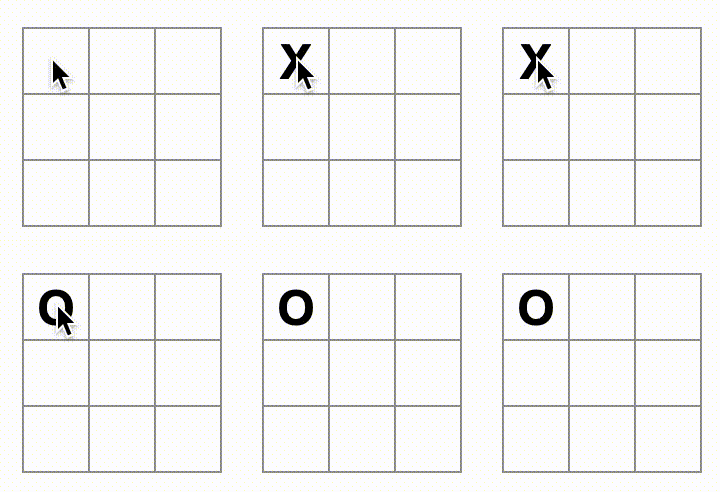
X 被 O 覆盖了!虽然这会给游戏带来一个非常有趣的变化,但我们暂时还是保持原始规则。
当你用 X 或 O 标记一个格子时,你并没有先检查该格子是否已经有 X 或 O 值。你可以通过提前返回来修复这个问题。你会先检查该格子是否已经有 X 或 O。如果该格子已经被填满,你就会在 handleClick 函数中提前 return——在它尝试更新棋盘状态之前。
function handleClick(i) {
  if (squares[i]) {
    return;
  }
  const nextSquares = squares.slice();
  //...
}
现在你只能在空格子里添加 X 或 O 了!以下是此时你的代码应有的样子:
import { useState } from 'react';

function Square({value, onSquareClick}) {
  return (
    <button className="square" onClick={onSquareClick}>
      {value}
    </button>
  );
}

export default function Board() {
  const [xIsNext, setXIsNext] = useState(true);
  const [squares, setSquares] = useState(Array(9).fill(null));

  function handleClick(i) {
    if (squares[i]) {
      return;
    }
    const nextSquares = squares.slice();
    if (xIsNext) {
      nextSquares[i] = 'X';
    } else {
      nextSquares[i] = 'O';
    }
    setSquares(nextSquares);
    setXIsNext(!xIsNext);
  }

  return (
    <>
      <div className="board-row">
        <Square value={squares[0]} onSquareClick={() => handleClick(0)} />
        <Square value={squares[1]} onSquareClick={() => handleClick(1)} />
        <Square value={squares[2]} onSquareClick={() => handleClick(2)} />
      </div>
      <div className="board-row">
        <Square value={squares[3]} onSquareClick={() => handleClick(3)} />
        <Square value={squares[4]} onSquareClick={() => handleClick(4)} />
        <Square value={squares[5]} onSquareClick={() => handleClick(5)} />
      </div>
      <div className="board-row">
        <Square value={squares[6]} onSquareClick={() => handleClick(6)} />
        <Square value={squares[7]} onSquareClick={() => handleClick(7)} />
        <Square value={squares[8]} onSquareClick={() => handleClick(8)} />
      </div>
    </>
  );
}
宣布胜者
既然玩家可以轮流下棋了,你就需要在游戏获胜、且不再有可落子的位置时显示结果。为此,你会添加一个名为 calculateWinner 的辅助函数,它接收一个由 9 个格子组成的数组,检查是否有胜者,并在适当时返回 'X'、'O' 或 null。不用太担心 calculateWinner 函数本身;它并不是 React 特有的:
export default function Board() {
  //...
}

function calculateWinner(squares) {
  const lines = [
    [0, 1, 2],
    [3, 4, 5],
    [6, 7, 8],
    [0, 3, 6],
    [1, 4, 7],
    [2, 5, 8],
    [0, 4, 8],
    [2, 4, 6]
  ];
  for (let i = 0; i < lines.length; i++) {
    const [a, b, c] = lines[i];
    if (squares[a] && squares[a] === squares[b] && squares[a] === squares[c]) {
      return squares[a];
    }
  }
  return null;
}你会在 Board 组件的 handleClick 函数中调用 calculateWinner(squares) 来检查是否已有玩家获胜。你可以在检查用户是否点击了一个已经有 X 或 O 的格子时,同时进行这个检查。我们希望在这两种情况下都提前返回:
function handleClick(i) {
  if (squares[i] || calculateWinner(squares)) {
    return;
  }
  const nextSquares = squares.slice();
  //...
}
为了让玩家知道游戏结束了,你可以显示诸如 “Winner: X” 或 “Winner: O” 这样的文本。为此,你将在 Board 组件中添加一个 status 区域。如果游戏结束,它将显示胜者;如果游戏仍在进行中,则显示下一位玩家是谁:
export default function Board() {
  // ...
  const winner = calculateWinner(squares);
  let status;
  if (winner) {
    status = "Winner: " + winner;
  } else {
    status = "Next player: " + (xIsNext ? "X" : "O");
  }

  return (
    <>
      <div className="status">{status}</div>
      <div className="board-row">
        // ...
  )
}
恭喜!你现在已经有了一个可运行的井字棋游戏。你也刚刚学到了 React 的基础知识。所以真正的赢家是你。以下是代码应有的样子:
import { useState } from 'react';

function Square({value, onSquareClick}) {
  return (
    <button className="square" onClick={onSquareClick}>
      {value}
    </button>
  );
}

export default function Board() {
  const [xIsNext, setXIsNext] = useState(true);
  const [squares, setSquares] = useState(Array(9).fill(null));

  function handleClick(i) {
    if (calculateWinner(squares) || squares[i]) {
      return;
    }
    const nextSquares = squares.slice();
    if (xIsNext) {
      nextSquares[i] = 'X';
    } else {
      nextSquares[i] = 'O';
    }
    setSquares(nextSquares);
    setXIsNext(!xIsNext);
  }

  const winner = calculateWinner(squares);
  let status;
  if (winner) {
    status = 'Winner: ' + winner;
  } else {
    status = 'Next player: ' + (xIsNext ? 'X' : 'O');
  }

  return (
    <>
      <div className="status">{status}</div>
      <div className="board-row">
        <Square value={squares[0]} onSquareClick={() => handleClick(0)} />
        <Square value={squares[1]} onSquareClick={() => handleClick(1)} />
        <Square value={squares[2]} onSquareClick={() => handleClick(2)} />
      </div>
      <div className="board-row">
        <Square value={squares[3]} onSquareClick={() => handleClick(3)} />
        <Square value={squares[4]} onSquareClick={() => handleClick(4)} />
        <Square value={squares[5]} onSquareClick={() => handleClick(5)} />
      </div>
      <div className="board-row">
        <Square value={squares[6]} onSquareClick={() => handleClick(6)} />
        <Square value={squares[7]} onSquareClick={() => handleClick(7)} />
        <Square value={squares[8]} onSquareClick={() => handleClick(8)} />
      </div>
    </>
  );
}

function calculateWinner(squares) {
  const lines = [
    [0, 1, 2],
    [3, 4, 5],
    [6, 7, 8],
    [0, 3, 6],
    [1, 4, 7],
    [2, 5, 8],
    [0, 4, 8],
    [2, 4, 6],
  ];
  for (let i = 0; i < lines.length; i++) {
    const [a, b, c] = lines[i];
    if (squares[a] && squares[a] === squares[b] && squares[a] === squares[c]) {
      return squares[a];
    }
  }
  return null;
}
添加时间旅行
作为最后一个练习,让我们实现能够“回到过去”,查看游戏之前的落子过程。
存储落子历史
如果你修改了 squares 数组,那么实现时间旅行将会非常困难。
不过,你在每一步之后都使用了 slice() 来创建 squares 数组的新副本,并将其视为不可变数据。这将允许你存储 squares 数组每个过去版本,并在已经发生过的回合之间来回切换。
你将把过去的 squares 数组存储在另一个名为 history 的数组中,并将其作为新的状态变量来保存。history 数组表示从第一步到最后一步的所有棋盘状态,其结构如下:
[
  // 第一步之前
  [null, null, null, null, null, null, null, null, null],
  // 第一步之后
  [null, null, null, null, 'X', null, null, null, null],
  // 第二步之后
  [null, null, null, null, 'X', null, null, null, 'O'],
  // ...
]
再次提升状态
你现在将编写一个新的顶层组件,名为 Game,用于显示过去落子的列表。你会把包含整个游戏历史的 history 状态放在这里。
将 history 状态放到 Game 组件中后,你就可以从它的子组件 Board 中移除 squares 状态。就像你之前把状态从 Square 组件“提升”到 Board 组件一样,现在你要把它从 Board 再提升到顶层 Game 组件。这让 Game 组件可以完全控制 Board 的数据,并让它指示 Board 根据 history 渲染之前的回合。
首先,添加一个带有 export default 的 Game 组件。让它渲染 Board 组件和一些标记:
function Board() {
  // ...
}

export default function Game() {
  return (
    <div className="game">
      <div className="game-board">
        <Board />
      </div>
      <div className="game-info">
        <ol>{/*TODO*/}</ol>
      </div>
    </div>
  );
}
注意,你正在把 function Board() { 声明前面的 export default 关键字移除,并把它加到 function Game() { 声明前面。这会告诉你的 index.js 文件使用 Game 组件作为顶层组件,而不是 Board 组件。Game 组件返回的额外 div 是为之后你将添加到棋盘的游戏信息留出的空间。
向 Game 组件添加一些状态,用来记录下一位玩家是谁,以及落子历史:
export default function Game() {
  const [xIsNext, setXIsNext] = useState(true);
  const [history, setHistory] = useState([Array(9).fill(null)]);
  // ...
注意 [Array(9).fill(null)] 是一个只包含单个项的数组,而这个项本身又是一个包含 9 个 null 的数组。
为了渲染当前回合的棋盘格,你需要从 history 中读取最后一个 squares 数组。这里不需要 useState——你已经拥有足够的信息,可以在渲染时计算出来:
export default function Game() {
  const [xIsNext, setXIsNext] = useState(true);
  const [history, setHistory] = useState([Array(9).fill(null)]);
  const currentSquares = history[history.length - 1];
  // ...
接下来,在 Game 组件内部创建一个 handlePlay 函数,它将由 Board 组件调用来更新游戏。将 xIsNext、currentSquares 和 handlePlay 作为 props 传给 Board 组件:
export default function Game() {
  const [xIsNext, setXIsNext] = useState(true);
  const [history, setHistory] = useState([Array(9).fill(null)]);
  const currentSquares = history[history.length - 1];

  function handlePlay(nextSquares) {
    // TODO
  }

  return (
    <div className="game">
      <div className="game-board">
        <Board xIsNext={xIsNext} squares={currentSquares} onPlay={handlePlay} />
        //...
  )
}
让 Board 组件完全由它接收到的 props 控制。将 Board 组件改为接收三个 props:xIsNext、squares,以及一个新的 onPlay 函数;当玩家落子时,Board 可以用更新后的 squares 数组调用这个函数。接着,移除 Board 函数中调用 useState 的前两行:
function Board({ xIsNext, squares, onPlay }) {
  function handleClick(i) {
    //...
  }
  // ...
}
现在,把 Board 组件中 handleClick 里的 setSquares 和 setXIsNext 调用替换为一次对新 onPlay 函数的调用,这样当用户点击某个方格时,Game 组件就能更新 Board:
function Board({ xIsNext, squares, onPlay }) {
  function handleClick(i) {
    if (calculateWinner(squares) || squares[i]) {
      return;
    }
    const nextSquares = squares.slice();
    if (xIsNext) {
      nextSquares[i] = "X";
    } else {
      nextSquares[i] = "O";
    }
    onPlay(nextSquares);
  }
  //...
}
Board 组件现在完全由 Game 组件传入的 props 控制。你需要在 Game 组件中实现 handlePlay 函数,让游戏重新工作起来。
那么 handlePlay 被调用时应该做什么?记住,之前 Board 会用更新后的数组调用 setSquares;现在它把更新后的 squares 数组传给 onPlay。
handlePlay 函数需要更新 Game 的状态以触发重新渲染,但你已经没有可以调用的 setSquares 函数了——现在你使用的是 history 状态变量来存储这些信息。你需要通过把更新后的 squares 数组作为一个新的历史条目追加到 history 中来更新它。你还需要像 Board 以前那样切换 xIsNext:
export default function Game() {
  //...
  function handlePlay(nextSquares) {
    setHistory([...history, nextSquares]);
    setXIsNext(!xIsNext);
  }
  //...
}这里,[...history, nextSquares] 创建了一个新数组,其中包含 history 中的所有项,后面再跟上 nextSquares。(你可以把 ...history 展开语法 理解为“枚举 history 中的所有项”。)
例如,如果 history 是 [[null,null,null], ["X",null,null]],而 nextSquares 是 ["X",null,"O"],那么新的 [...history, nextSquares] 数组将是 [[null,null,null], ["X",null,null], ["X",null,"O"]]。
到这里,你已经把状态移动到 Game 组件中,UI 应该能够完全正常工作,就像重构之前一样。下面是此时代码应有的样子:
import { useState } from 'react';

function Square({ value, onSquareClick }) {
  return (
    <button className="square" onClick={onSquareClick}>
      {value}
    </button>
  );
}

function Board({ xIsNext, squares, onPlay }) {
  function handleClick(i) {
    if (calculateWinner(squares) || squares[i]) {
      return;
    }
    const nextSquares = squares.slice();
    if (xIsNext) {
      nextSquares[i] = 'X';
    } else {
      nextSquares[i] = 'O';
    }
    onPlay(nextSquares);
  }

  const winner = calculateWinner(squares);
  let status;
  if (winner) {
    status = 'Winner: ' + winner;
  } else {
    status = 'Next player: ' + (xIsNext ? 'X' : 'O');
  }

  return (
    <>
      <div className="status">{status}</div>
      <div className="board-row">
        <Square value={squares[0]} onSquareClick={() => handleClick(0)} />
        <Square value={squares[1]} onSquareClick={() => handleClick(1)} />
        <Square value={squares[2]} onSquareClick={() => handleClick(2)} />
      </div>
      <div className="board-row">
        <Square value={squares[3]} onSquareClick={() => handleClick(3)} />
        <Square value={squares[4]} onSquareClick={() => handleClick(4)} />
        <Square value={squares[5]} onSquareClick={() => handleClick(5)} />
      </div>
      <div className="board-row">
        <Square value={squares[6]} onSquareClick={() => handleClick(6)} />
        <Square value={squares[7]} onSquareClick={() => handleClick(7)} />
        <Square value={squares[8]} onSquareClick={() => handleClick(8)} />
      </div>
    </>
  );
}

export default function Game() {
  const [xIsNext, setXIsNext] = useState(true);
  const [history, setHistory] = useState([Array(9).fill(null)]);
  const currentSquares = history[history.length - 1];

  function handlePlay(nextSquares) {
    setHistory([...history, nextSquares]);
    setXIsNext(!xIsNext);
  }

  return (
    <div className="game">
      <div className="game-board">
        <Board xIsNext={xIsNext} squares={currentSquares} onPlay={handlePlay} />
      </div>
      <div className="game-info">
        <ol>{/*TODO*/}</ol>
      </div>
    </div>
  );
}

function calculateWinner(squares) {
  const lines = [
    [0, 1, 2],
    [3, 4, 5],
    [6, 7, 8],
    [0, 3, 6],
    [1, 4, 7],
    [2, 5, 8],
    [0, 4, 8],
    [2, 4, 6],
  ];
  for (let i = 0; i < lines.length; i++) {
    const [a, b, c] = lines[i];
    if (squares[a] && squares[a] === squares[b] && squares[a] === squares[c]) {
      return squares[a];
    }
  }
  return null;
}
显示过去的落子
既然你已经记录了井字棋游戏的历史,现在你可以向玩家显示过去落子的列表了。
像 <button> 这样的 React 元素本质上就是普通的 JavaScript 对象;你可以在应用中传递它们。要在 React 中渲染多个项目,你可以使用一个 React 元素数组。
你已经在状态中有一个 history 落子数组了,现在你需要把它转换成一个 React 元素数组。在 JavaScript 中,要把一个数组转换成另一个数组,你可以使用 数组 map 方法:
[1, 2, 3].map((x) => x * 2) // [2, 4, 6]你将使用 map 把你的落子 history 转换为表示屏幕上按钮的 React 元素,并显示一个按钮列表,用来“跳转”到过去的落子。让我们在 Game 组件中对 history 使用 map:
export default function Game() {
  const [xIsNext, setXIsNext] = useState(true);
  const [history, setHistory] = useState([Array(9).fill(null)]);
  const currentSquares = history[history.length - 1];

  function handlePlay(nextSquares) {
    setHistory([...history, nextSquares]);
    setXIsNext(!xIsNext);
  }

  function jumpTo(nextMove) {
    // 待办事项
  }

  const moves = history.map((squares, move) => {
    let description;
    if (move > 0) {
      description = '前往第 #' + move + ' 步';
    } else {
      description = '前往游戏开始';
    }
    return (
      <li>
        <button onClick={() => jumpTo(move)}>{description}</button>
      </li>
    );
  });

  return (
    <div className="game">
      <div className="game-board">
        <Board xIsNext={xIsNext} squares={currentSquares} onPlay={handlePlay} />
      </div>
      <div className="game-info">
        <ol>{moves}</ol>
      </div>
    </div>
  );
}
你可以在下面看到你的代码应是什么样子。注意,你应该会在开发者工具控制台中看到一个错误:
Game 的 render 方法。你会在下一节修复这个错误。
import { useState } from 'react';

function Square({ value, onSquareClick }) {
  return (
    <button className="square" onClick={onSquareClick}>
      {value}
    </button>
  );
}

function Board({ xIsNext, squares, onPlay }) {
  function handleClick(i) {
    if (calculateWinner(squares) || squares[i]) {
      return;
    }
    const nextSquares = squares.slice();
    if (xIsNext) {
      nextSquares[i] = 'X';
    } else {
      nextSquares[i] = 'O';
    }
    onPlay(nextSquares);
  }

  const winner = calculateWinner(squares);
  let status;
  if (winner) {
    status = '获胜者:' + winner;
  } else {
    status = '下一位玩家:' + (xIsNext ? 'X' : 'O');
  }

  return (
    <>
      <div className="status">{status}</div>
      <div className="board-row">
        <Square value={squares[0]} onSquareClick={() => handleClick(0)} />
        <Square value={squares[1]} onSquareClick={() => handleClick(1)} />
        <Square value={squares[2]} onSquareClick={() => handleClick(2)} />
      </div>
      <div className="board-row">
        <Square value={squares[3]} onSquareClick={() => handleClick(3)} />
        <Square value={squares[4]} onSquareClick={() => handleClick(4)} />
        <Square value={squares[5]} onSquareClick={() => handleClick(5)} />
      </div>
      <div className="board-row">
        <Square value={squares[6]} onSquareClick={() => handleClick(6)} />
        <Square value={squares[7]} onSquareClick={() => handleClick(7)} />
        <Square value={squares[8]} onSquareClick={() => handleClick(8)} />
      </div>
    </>
  );
}

export default function Game() {
  const [xIsNext, setXIsNext] = useState(true);
  const [history, setHistory] = useState([Array(9).fill(null)]);
  const currentSquares = history[history.length - 1];

  function handlePlay(nextSquares) {
    setHistory([...history, nextSquares]);
    setXIsNext(!xIsNext);
  }

  function jumpTo(nextMove) {
    // 待办事项
  }

  const moves = history.map((squares, move) => {
    let description;
    if (move > 0) {
      description = '前往第 #' + move + ' 步';
    } else {
      description = '前往游戏开始';
    }
    return (
      <li>
        <button onClick={() => jumpTo(move)}>{description}</button>
      </li>
    );
  });

  return (
    <div className="game">
      <div className="game-board">
        <Board xIsNext={xIsNext} squares={currentSquares} onPlay={handlePlay} />
      </div>
      <div className="game-info">
        <ol>{moves}</ol>
      </div>
    </div>
  );
}

function calculateWinner(squares) {
  const lines = [
    [0, 1, 2],
    [3, 4, 5],
    [6, 7, 8],
    [0, 3, 6],
    [1, 4, 7],
    [2, 5, 8],
    [0, 4, 8],
    [2, 4, 6],
  ];
  for (let i = 0; i < lines.length; i++) {
    const [a, b, c] = lines[i];
    if (squares[a] && squares[a] === squares[b] && squares[a] === squares[c]) {
      return squares[a];
    }
  }
  return null;
}
在你迭代传给 map 的函数里的 history 数组时,squares 参数会依次遍历 history 的每个元素,而 move 参数会遍历每个数组索引:0、1、2,……(在大多数情况下,你需要的是实际数组元素,但要渲染一个落子列表时,你只需要索引。)
对于井字棋游戏历史中的每一步,你都会创建一个列表项 <li>,其中包含一个按钮 <button>。按钮带有一个 onClick 处理函数,它会调用一个名为 jumpTo 的函数(你还没有实现它)。
现在,你应该会看到游戏中发生过的落子列表,以及开发者工具控制台中的一个错误。下面来讨论一下这个 “key” 错误是什么意思。
选择 key
当你渲染一个列表时,React 会保存每个已渲染列表项的一些信息。当你更新一个列表时,React 需要确定发生了什么变化。你可能添加、删除、重新排列或更新了列表中的项目。
想象一下从
<li>Alexa: 7 tasks left</li>
<li>Ben: 5 tasks left</li>
变成
<li>Ben: 9 tasks left</li>
<li>Claudia: 8 tasks left</li>
<li>Alexa: 5 tasks left</li>
除了更新后的数量,一个人读到这里大概会认为你交换了 Alexa 和 Ben 的顺序,并在 Alexa 和 Ben 之间插入了 Claudia。然而,React 是一个计算机程序,它不知道你的意图,所以你需要为每个列表项指定一个 key 属性,以便区分它和其他兄弟项。如果你的数据来自数据库,那么 Alexa、Ben 和 Claudia 的数据库 ID 可以作为 key。
<li key={user.id}>
  {user.name}: {user.taskCount} tasks left
</li>
当一个列表重新渲染时,React 会取出每个列表项的 key,并在之前的列表项中查找匹配的 key。如果当前列表中的某个 key 之前不存在,React 就会创建一个组件。如果当前列表缺少一个之前存在的 key,React 就会销毁之前的组件。如果两个 key 匹配,对应的组件就会被移动。
key 告诉 React 每个组件的身份,这使 React 能够在重新渲染之间保持状态。如果一个组件的 key 改变了,组件将被销毁并使用新的状态重新创建。
key 是 React 中一个特殊且保留的属性。当元素被创建时,React 会提取 key 属性并将 key 直接存储在返回的元素上。虽然 key 看起来像是作为 props 传入的,但 React 会自动使用 key 来决定更新哪些组件。组件没有办法知道其父组件指定了什么 key。
强烈建议你在构建动态列表时始终分配合适的 key。 如果你没有合适的 key,可能需要考虑重构你的数据结构,使其适合这样做。
如果没有指定 key,React 会报错,并默认使用数组索引作为 key。使用数组索引作为 key 在重新排序列表项或插入/删除列表项时会有问题。显式传入 key={i} 可以消除错误,但它和数组索引有同样的问题,在大多数情况下并不推荐。
key 不需要全局唯一;它们只需要在组件及其兄弟组件之间唯一即可。
实现时间旅行
在井字棋游戏的历史中,每一次过去的落子都有一个唯一的 ID 与之关联:也就是该落子的顺序编号。落子永远不会被重新排序、删除或插入到中间,因此把落子索引用作 key 是安全的。
在 Game 函数中,你可以把 key 添加为 <li key={move}>,如果你重新加载渲染后的游戏,React 的 “key” 错误应该就会消失:
const moves = history.map((squares, move) => {
  //...
  return (
    <li key={move}>
      <button onClick={() => jumpTo(move)}>{description}</button>
    </li>
  );
});import { useState } from 'react'; function Square({ value, onSquareClick }) { return ( <button className="square" onClick={onSquareClick}> {value} </button> ); } function Board({ xIsNext, squares, onPlay }) { function handleClick(i) { if (calculateWinner(squares) || squares[i]) { return; } const nextSquares = squares.slice(); if (xIsNext) { nextSquares[i] = 'X'; } else { nextSquares[i] = 'O'; } onPlay(nextSquares); } const winner = calculateWinner(squares); let status; if (winner) { status = '获胜者:' + winner; } else { status = '下一位玩家:' + (xIsNext ? 'X' : 'O'); } return ( <> <div className="status">{status}</div> <div className="board-row"> <Square value={squares[0]} onSquareClick={() => handleClick(0)} /> <Square value={squares[1]} onSquareClick={() => handleClick(1)} /> <Square value={squares[2]} onSquareClick={() => handleClick(2)} /> </div> <div className="board-row"> <Square value={squares[3]} onSquareClick={() => handleClick(3)} /> <Square value={squares[4]} onSquareClick={() => handleClick(4)} /> <Square value={squares[5]} onSquareClick={() => handleClick(5)} /> </div> <div className="board-row"> <Square value={squares[6]} onSquareClick={() => handleClick(6)} /> <Square value={squares[7]} onSquareClick={() => handleClick(7)} /> <Square value={squares[8]} onSquareClick={() => handleClick(8)} /> </div> </> ); } export default function Game() { const [xIsNext, setXIsNext] = useState(true); const [history, setHistory] = useState([Array(9).fill(null)]); const currentSquares = history[history.length - 1]; function handlePlay(nextSquares) { setHistory([...history, nextSquares]); setXIsNext(!xIsNext); } function jumpTo(nextMove) { // TODO } const moves = history.map((squares, move) => { let description; if (move > 0) { description = '转到第 #' + move 步'; } else { description = '回到游戏开始'; } return ( <li key={move}> <button onClick={() => jumpTo(move)}>{description}</button> </li> ); }); return ( <div className="game"> <div className="game-board"> <Board xIsNext={xIsNext} squares={currentSquares} onPlay={handlePlay} /> </div> <div className="game-info"> <ol>{moves}</ol> </div> </div> ); } function calculateWinner(squares) { const lines = [ [0, 1, 2], [3, 4, 5], [6, 7, 8], [0, 3, 6], [1, 4, 7], [2, 5, 8], [0, 4, 8], [2, 4, 6], ]; for (let i = 0; i < lines.length; i++) { const [a, b, c] = lines[i]; if (squares[a] && squares[a] === squares[b] && squares[a] === squares[c]) { return squares[a]; } } return null; }
在实现 jumpTo 之前,你需要让 Game 组件跟踪用户当前正在查看哪一步。为此,定义一个新的状态变量 currentMove,默认值为 0:
export default function Game() {
  const [xIsNext, setXIsNext] = useState(true);
  const [history, setHistory] = useState([Array(9).fill(null)]);
  const [currentMove, setCurrentMove] = useState(0);
  const currentSquares = history[history.length - 1];
  //...
}
接下来,更新 Game 内部的 jumpTo 函数来更新这个 currentMove。如果你要把 currentMove 改成的数字是偶数,你还需要把 xIsNext 设为 true。
export default function Game() {
  // ...
  function jumpTo(nextMove) {
    setCurrentMove(nextMove);
    setXIsNext(nextMove % 2 === 0);
  }
  //...
}
现在你将对 Game 的 handlePlay 函数做两个修改,它会在你点击某个方格时被调用。
- 如果你“回到过去”之后又从那个时点下了一步棋,你只想保留那个时点之前的历史。因此,你不会把
nextSquares加到history里所有项(...展开语法)之后,而是把它加到history.slice(0, currentMove + 1)的所有项之后,这样你只会保留旧历史的那一部分。 - 每次走一步棋,你都需要把
currentMove更新到最新的历史条目。
function handlePlay(nextSquares) {
  const nextHistory = [...history.slice(0, currentMove + 1), nextSquares];
  setHistory(nextHistory);
  setCurrentMove(nextHistory.length - 1);
  setXIsNext(!xIsNext);
}
最后,你将修改 Game 组件,不再总是渲染最终落子,而是渲染当前选中的那一步:
export default function Game() {
  const [xIsNext, setXIsNext] = useState(true);
  const [history, setHistory] = useState([Array(9).fill(null)]);
  const [currentMove, setCurrentMove] = useState(0);
  const currentSquares = history[currentMove];

  // ...
}
如果你点击游戏历史中的任一步,井字棋棋盘应该会立即更新,显示那一步之后棋盘的样子。
import { useState } from 'react';

function Square({value, onSquareClick}) {
  return (
    <button className="square" onClick={onSquareClick}>
      {value}
    </button>
  );
}

function Board({ xIsNext, squares, onPlay }) {
  function handleClick(i) {
    if (calculateWinner(squares) || squares[i]) {
      return;
    }
    const nextSquares = squares.slice();
    if (xIsNext) {
      nextSquares[i] = 'X';
    } else {
      nextSquares[i] = 'O';
    }
    onPlay(nextSquares);
  }

  const winner = calculateWinner(squares);
  let status;
  if (winner) {
    status = '获胜者:' + winner;
  } else {
    status = '下一位玩家:' + (xIsNext ? 'X' : 'O');
  }

  return (
    <>
      <div className="status">{status}</div>
      <div className="board-row">
        <Square value={squares[0]} onSquareClick={() => handleClick(0)} />
        <Square value={squares[1]} onSquareClick={() => handleClick(1)} />
        <Square value={squares[2]} onSquareClick={() => handleClick(2)} />
      </div>
      <div className="board-row">
        <Square value={squares[3]} onSquareClick={() => handleClick(3)} />
        <Square value={squares[4]} onSquareClick={() => handleClick(4)} />
        <Square value={squares[5]} onSquareClick={() => handleClick(5)} />
      </div>
      <div className="board-row">
        <Square value={squares[6]} onSquareClick={() => handleClick(6)} />
        <Square value={squares[7]} onSquareClick={() => handleClick(7)} />
        <Square value={squares[8]} onSquareClick={() => handleClick(8)} />
      </div>
    </>
  );
}

export default function Game() {
  const [xIsNext, setXIsNext] = useState(true);
  const [history, setHistory] = useState([Array(9).fill(null)]);
  const [currentMove, setCurrentMove] = useState(0);
  const currentSquares = history[currentMove];

  function handlePlay(nextSquares) {
    const nextHistory = [...history.slice(0, currentMove + 1), nextSquares];
    setHistory(nextHistory);
    setCurrentMove(nextHistory.length - 1);
    setXIsNext(!xIsNext);
  }

  function jumpTo(nextMove) {
    setCurrentMove(nextMove);
    setXIsNext(nextMove % 2 === 0);
  }

  const moves = history.map((squares, move) => {
    let description;
    if (move > 0) {
      description = '转到第 #' + move + ' 步';
    } else {
      description = '回到游戏开始';
    }
    return (
      <li key={move}>
        <button onClick={() => jumpTo(move)}>{description}</button>
      </li>
    );
  });

  return (
    <div className="game">
      <div className="game-board">
        <Board xIsNext={xIsNext} squares={currentSquares} onPlay={handlePlay} />
      </div>
      <div className="game-info">
        <ol>{moves}</ol>
      </div>
    </div>
  );
}

function calculateWinner(squares) {
  const lines = [
    [0, 1, 2],
    [3, 4, 5],
    [6, 7, 8],
    [0, 3, 6],
    [1, 4, 7],
    [2, 5, 8],
    [0, 4, 8],
    [2, 4, 6],
  ];
  for (let i = 0; i < lines.length; i++) {
    const [a, b, c] = lines[i];
    if (squares[a] && squares[a] === squares[b] && squares[a] === squares[c]) {
      return squares[a];
    }
  }
  return null;
}
最后整理
如果你仔细查看代码,你可能会注意到:当 currentMove 为偶数时,xIsNext === true,当 currentMove 为奇数时,xIsNext === false。换句话说,如果你知道 currentMove 的值,就总能推断出 xIsNext 应该是什么。
你没有理由把这两个都存进状态里。事实上,你应该尽量避免冗余状态。简化你存入状态中的内容可以减少 bug,并让代码更容易理解。把 Game 改成不再把 xIsNext 作为单独的状态变量存储,而是根据 currentMove 来计算它:
export default function Game() {
  const [history, setHistory] = useState([Array(9).fill(null)]);
  const [currentMove, setCurrentMove] = useState(0);
  const xIsNext = currentMove % 2 === 0;
  const currentSquares = history[currentMove];

  function handlePlay(nextSquares) {
    const nextHistory = [...history.slice(0, currentMove + 1), nextSquares];
    setHistory(nextHistory);
    setCurrentMove(nextHistory.length - 1);
  }

  function jumpTo(nextMove) {
    setCurrentMove(nextMove);
  }
  // ...
}
你不再需要 xIsNext 的状态声明,也不再需要调用 setXIsNext。现在,xIsNext 再也不会和 currentMove 不同步了,即使你在编写组件时犯了错也是如此。
总结
恭喜你!你已经创建了一个井字棋游戏,它:
- 允许你玩井字棋,
- 在某位玩家获胜时进行提示,
- 在游戏进行过程中保存游戏历史,
- 允许玩家回顾游戏历史并查看棋盘的先前版本。
干得漂亮!我们希望你现在已经对 React 的工作方式有了不错的理解。
在这里查看最终结果:
import { useState } from 'react';

function Square({ value, onSquareClick }) {
  return (
    <button className="square" onClick={onSquareClick}>
      {value}
    </button>
  );
}

function Board({ xIsNext, squares, onPlay }) {
  function handleClick(i) {
    if (calculateWinner(squares) || squares[i]) {
      return;
    }
    const nextSquares = squares.slice();
    if (xIsNext) {
      nextSquares[i] = 'X';
    } else {
      nextSquares[i] = 'O';
    }
    onPlay(nextSquares);
  }

  const winner = calculateWinner(squares);
  let status;
  if (winner) {
    status = '获胜者:' + winner;
  } else {
    status = '下一位玩家:' + (xIsNext ? 'X' : 'O');
  }

  return (
    <>
      <div className="status">{status}</div>
      <div className="board-row">
        <Square value={squares[0]} onSquareClick={() => handleClick(0)} />
        <Square value={squares[1]} onSquareClick={() => handleClick(1)} />
        <Square value={squares[2]} onSquareClick={() => handleClick(2)} />
      </div>
      <div className="board-row">
        <Square value={squares[3]} onSquareClick={() => handleClick(3)} />
        <Square value={squares[4]} onSquareClick={() => handleClick(4)} />
        <Square value={squares[5]} onSquareClick={() => handleClick(5)} />
      </div>
      <div className="board-row">
        <Square value={squares[6]} onSquareClick={() => handleClick(6)} />
        <Square value={squares[7]} onSquareClick={() => handleClick(7)} />
        <Square value={squares[8]} onSquareClick={() => handleClick(8)} />
      </div>
    </>
  );
}

export default function Game() {
  const [history, setHistory] = useState([Array(9).fill(null)]);
  const [currentMove, setCurrentMove] = useState(0);
  const xIsNext = currentMove % 2 === 0;
  const currentSquares = history[currentMove];

  function handlePlay(nextSquares) {
    const nextHistory = [...history.slice(0, currentMove + 1), nextSquares];
    setHistory(nextHistory);
    setCurrentMove(nextHistory.length - 1);
  }

  function jumpTo(nextMove) {
    setCurrentMove(nextMove);
  }

  const moves = history.map((squares, move) => {
    let description;
    if (move > 0) {
      description = '前往第 #' + move + ' 步';
    } else {
      description = '前往游戏开始';
    }
    return (
      <li key={move}>
        <button onClick={() => jumpTo(move)}>{description}</button>
      </li>
    );
  });

  return (
    <div className="game">
      <div className="game-board">
        <Board xIsNext={xIsNext} squares={currentSquares} onPlay={handlePlay} />
      </div>
      <div className="game-info">
        <ol>{moves}</ol>
      </div>
    </div>
  );
}

function calculateWinner(squares) {
  const lines = [
    [0, 1, 2],
    [3, 4, 5],
    [6, 7, 8],
    [0, 3, 6],
    [1, 4, 7],
    [2, 5, 8],
    [0, 4, 8],
    [2, 4, 6],
  ];
  for (let i = 0; i < lines.length; i++) {
    const [a, b, c] = lines[i];
    if (squares[a] && squares[a] === squares[b] && squares[a] === squares[c]) {
      return squares[a];
    }
  }
  return null;
}
如果你有额外时间,或者想练习新的 React 技能,下面是一些你可以对井字棋游戏做的改进想法,按难度递增排列:
- 仅对当前步骤显示“你正在第 # 步…”而不是按钮。
- 重写
Board,使用两个循环来生成方格,而不是手动硬编码。 - 添加一个切换按钮,让落子列表可以按升序或降序排序。
- 当有人获胜时,突出显示导致胜利的三个方格(当没人获胜时,显示平局结果的消息)。
- 在落子历史列表中,以(行,列)的格式显示每一步的位置。
在整个教程中,你接触了 React 的一些概念,包括元素、组件、props 和 state。现在你已经看到这些概念在构建一个游戏时是如何工作的,可以继续查看 用 React 思考,了解这些 React 概念在构建应用 UI 时是如何运作的。